
-
The Transition to Everymail
- Why “Free” Email Is Usually Not Free
- Your transition to Everymail
- How can I subscribe to Everymail?
- How does the free trial work?
- Why is my email service being transitioned to Everymail?
- Why do I have to pay for email now?
- What happens if I don't subscribe during the free trial?
- Is my information shared or sold to third parties?
- Can I recover my email data if I don’t subscribe by the end of the subscription period?
- How does Everymail comply with data privacy laws?
- Does Everymail mine my data?
-
My Account
-
Forgot Your Password
-
Everymail on Every Device
-
Advanced Support
-
Everymail on the Web
- How to recognize genuine Everymail emails and avoid phishing
- Everymail on the Web
- Use 2-step Verification to secure your email account
- Downloading your Personal Data
- How to change your login password in webmail
- I can't login
- How do I log in to my email?
- Create a new folder
- Move an email to a folder
- Using search in Mail
- Archiving emails
- Storage Usage
- Mark as Spam/Not Spam
- Delete an email
- Setup your email signature
- Using sort to search
- Mark as Read/Unread
- How to spellcheck emails
- Adjust the size of text
- Enabling Conversations (Visually group all messages with their replies)
- Adjust your location, time zone and language settings
- Automatically save email addresses
- How to Auto forward emails
- Organize your email with folders
- Enter your contact information
-
Billing and Payments
-
Customize Everymail on the Web
- Customize your inbox
- Unified Mail
- Adding an existing email account to Webmail
- Customize your email with themes and backgrounds
- Organize your email using filter rules
- Using Inbox Categories to organize your incoming emails
- Choose your email layout view
- Configure your quick launch icons
- Enable dark-mode
- Customize your portal
-
Address Book
-
Calendar Management
-
Tasks Management
-
Email & File Encryption
Need more help?
Can't find what you're looking for? Our team is here for you.
Contact support
US Datacenter
EU Datacenter
How do I cancel my subscription?
You can cancel your subscription in Everymail My Account.
Canceling in My Account
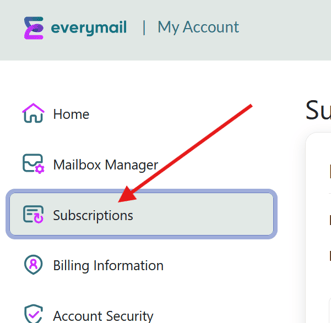
Canceling your account is done by turning off the Auto-renew feature, which you can find in the My Account Subscriptions section. You can do this for yourself by following the steps below:
- Log in to My Account
- Click on Subscriptions on the left
- Click the little slide button that says:
Auto-Renew for Everymail Subscription

How to Tell Auto-Renew Status
 Slide is green, and to the right: Auto-Renew is on
When on: You will be billed the next time your subscription is renewed, after your current subscription period has finished (monthly or yearly).
 Slide is grey and to the left: Auto-Renew is off
When off: You will not be billed again, when your subscription runs out. You will have access to your email until the end of your current paid subscription period (monthly or yearly).
⚠️NOTE: Whenever you click the Auto-Renew slide button, a popup will explain the action you're about to take - whether that's to disable or enable auto-renew, and it will ask you to confirm.
More Help
 If you're having difficulty canceling your account, or would like some additional help. You can use our Support Chat in the lower-right, during normal business hours.
⚠️NOTE: If you wish to have your email canceled effective immediately, please contact support. We can accommodate this on request, but note that you will not be able to receive a refund for any unused portion of your subscription.