
-
The Transition to Everymail
- Why “Free” Email Is Usually Not Free
- Your transition to Everymail
- How can I subscribe to Everymail?
- How does the free trial work?
- Why is my email service being transitioned to Everymail?
- Why do I have to pay for email now?
- What happens if I don't subscribe during the free trial?
- Is my information shared or sold to third parties?
- Can I recover my email data if I don’t subscribe by the end of the subscription period?
- How does Everymail comply with data privacy laws?
- Does Everymail mine my data?
-
My Account
-
Forgot Your Password
-
Everymail on Every Device
-
Advanced Support
-
Everymail on the Web
- How to recognize genuine Everymail emails and avoid phishing
- Everymail on the Web
- Use 2-step Verification to secure your email account
- Downloading your Personal Data
- How to change your login password in webmail
- I can't login
- How do I log in to my email?
- Create a new folder
- Move an email to a folder
- Using search in Mail
- Archiving emails
- Storage Usage
- Mark as Spam/Not Spam
- Delete an email
- Setup your email signature
- Using sort to search
- Mark as Read/Unread
- How to spellcheck emails
- Adjust the size of text
- Enabling Conversations (Visually group all messages with their replies)
- Adjust your location, time zone and language settings
- Automatically save email addresses
- How to Auto forward emails
- Organize your email with folders
- Enter your contact information
-
Billing and Payments
-
Customize Everymail on the Web
- Customize your inbox
- Unified Mail
- Adding an existing email account to Webmail
- Customize your email with themes and backgrounds
- Organize your email using filter rules
- Using Inbox Categories to organize your incoming emails
- Choose your email layout view
- Configure your quick launch icons
- Enable dark-mode
- Customize your portal
-
Address Book
-
Calendar Management
-
Tasks Management
-
Email & File Encryption
Need more help?
Can't find what you're looking for? Our team is here for you.
Contact support
US Datacenter
EU Datacenter
How to recognize genuine Everymail emails and avoid phishing
Unfortunately, scammers sometimes pretend to be trusted companies like Everymail. They may send fake emails that look convincing in the hope that you will click a link, share personal information or provide your login details.
The good news is that there are a few simple things you can do to help protect yourself.
Which email addresses does Everymail use?
Everymail sends emails to customers from addresses including:
- news@everymail.com – News, tips and product updates
- info@everymail.com – General information
- billing@everymail.com – Billing and account-related information
Scammers can make an email appear to come from a trusted company by using a familiar sender name. For example, an email may show “Everymail” as the sender, while the actual email address belongs to someone else.
If you receive an email claiming to be from Everymail, check the sender’s full email address. Pay particular attention to everything after the @ symbol. Official Everymail emails use an @everymail.com email address.
An email from an unrelated address, such as everymail@hotmail.com, is not an Everymail email, even if the sender’s name says “Everymail” or the email looks genuine.
If you’re unsure, don’t click anything in the email. You can contact us at info@everymail.com and ask us to check it for you.
What to look for in an email
The examples below show the difference between a genuine Everymail email and a suspicious email pretending to come from Everymail.
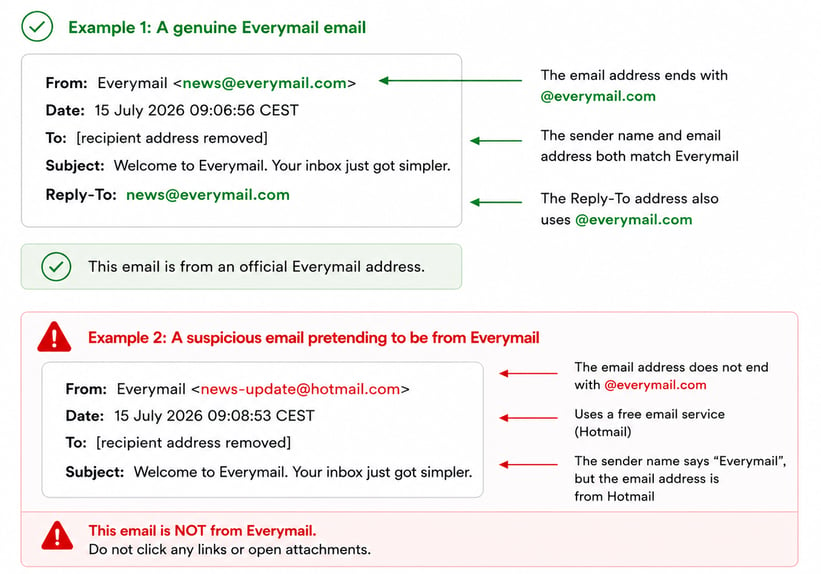
The name shown next to From is not always proof of who sent the email. In both examples, the sender appears to be Everymail, but only the first example is sent from an @everymail.com address.
If the sender uses an unrelated email address, such as a Hotmail, Gmail or Yahoo address, don’t click any links or open any attachments. If you’re unsure, contact us at info@everymail.com.
Mark suspicious mails as spam
If a suspicious email arrives in your Inbox, please mark it as Spam. By marking unwanted emails as spam, you help train our spam filters. This makes it easier for us to identify similar messages in the future and helps protect both you and other Everymail customers from phishing and spam.
In Everymail Webmail
- Select the suspicious email.
- Click the three dots (More actions).
- Choose Mark as spam.
You can also drag the email into your Spam folder.
Using another email program
If you use an email program such as Microsoft Outlook, Apple Mail or Thunderbird, you can usually move the message to your Spam or Junk folder. Most email programs also include a Mark as spam or Junk button.
Good to know: Every message that is marked as spam helps improve spam detection. Over time, this allows our filtering systems to better recognize similar phishing and spam emails before they reach your Inbox.
If the email is pretending to be from Everymail, we would also appreciate it if you report it to abuse@everymail.com so that our security team can investigate it.
Take your time
Scammers often try to create a sense of urgency so that you act before you have time to think.
They may say things like:
- Your account will be closed today.
- Your mailbox is full.
- Your payment failed.
- Verify your account immediately.
Don’t let these messages pressure you. Take a moment to read the email carefully before doing anything.
Never feel rushed to click
Be cautious if an email asks you to click a button or link immediately, especially if you weren’t expecting the message.
If you’re unsure about an email, don’t use the links or buttons inside it. Instead, open your web browser yourself and go to the Everymail website as you normally would.
This helps you avoid being taken to a fake website designed to look like the real one.
Be careful with unexpected requests
Everymail will never ask you to send us:
- Your password
- Verification codes
- Credit card details by email
If an email unexpectedly asks you to provide sensitive information, be suspicious and don’t respond.
Something doesn’t feel right?
Trust your instincts. If an email looks unusual or you weren’t expecting it, it’s always worth being cautious.
Warning signs can include:
- An unexpected request to click a link
- Pressure to act quickly
- Requests for passwords or other sensitive information
- An unfamiliar sender address
- Unexpected attachments
- Spelling mistakes or unusual wording
However, keep in mind that scam emails can also look very professional. An email without spelling mistakes is not automatically safe.
If anything seems suspicious, don’t click any links, open attachments or reply to the sender.
Report suspicious emails
If you think you’ve received a fake Everymail email, please let us know. Reporting suspicious emails helps us investigate scams and protect you and other Everymail customers.
The best way to report a suspicious email is to send us the original email as an attachment at abuse@everymail.com. The original message contains information that can help our security team investigate where the email came from.
If your email program gives you an option such as “Save message”, “Download message” or “Save as”, you can save the suspicious email as an .eml file. Then create a new email to abuse@everymail.com and attach the saved .eml file.
If you’re not sure how to do this, you can simply forward the suspicious email to abuse@everymail.com instead. We can still use your report, so please don’t let the technical steps stop you from reporting a suspicious message.
If you’re simply unsure whether an email is really from Everymail, you can contact us at info@everymail.com. We can help you check whether the message is genuine.
Until you know that an email is safe, don’t click any links, open attachments or reply to the sender.
Remember
The safest approach is also the simplest:
✅ Take your time. Don’t let urgent messages pressure you.
✅ Always check the actual email address (the part after the @), not just the sender name.
✅ If the sender uses an unrelated address such as Hotmail, Gmail or Yahoo, be suspicious.
✅ Be careful with unexpected links, attachments and requests.
✅ If you’re unsure, don’t click anything.
✅ Mark suspicious emails as Spam to help improve spam protection for everyone.
We would much rather answer a question than have one of our customers become the victim of a phishing scam.