
-
The Transition to Everymail
- Why “Free” Email Is Usually Not Free
- Your transition to Everymail
- How can I subscribe to Everymail?
- How does the free trial work?
- Why is my email service being transitioned to Everymail?
- Why do I have to pay for email now?
- What happens if I don't subscribe during the free trial?
- Is my information shared or sold to third parties?
- Can I recover my email data if I don’t subscribe by the end of the subscription period?
- How does Everymail comply with data privacy laws?
- Does Everymail mine my data?
-
My Account
-
Forgot Your Password
-
Everymail on Every Device
-
Advanced Support
-
Everymail on the Web
- How to recognize genuine Everymail emails and avoid phishing
- Everymail on the Web
- Use 2-step Verification to secure your email account
- Downloading your Personal Data
- How to change your login password in webmail
- I can't login
- How do I log in to my email?
- Create a new folder
- Move an email to a folder
- Using search in Mail
- Archiving emails
- Storage Usage
- Mark as Spam/Not Spam
- Delete an email
- Setup your email signature
- Using sort to search
- Mark as Read/Unread
- How to spellcheck emails
- Adjust the size of text
- Enabling Conversations (Visually group all messages with their replies)
- Adjust your location, time zone and language settings
- Automatically save email addresses
- How to Auto forward emails
- Organize your email with folders
- Enter your contact information
-
Billing and Payments
-
Customize Everymail on the Web
- Customize your inbox
- Unified Mail
- Adding an existing email account to Webmail
- Customize your email with themes and backgrounds
- Organize your email using filter rules
- Using Inbox Categories to organize your incoming emails
- Choose your email layout view
- Configure your quick launch icons
- Enable dark-mode
- Customize your portal
-
Address Book
-
Calendar Management
-
Tasks Management
-
Email & File Encryption
Need more help?
Can't find what you're looking for? Our team is here for you.
Contact support
US Datacenter
EU Datacenter
Mailbox Manager
In My Account > Mailbox Manager, you can add new mailboxes and manage the mailboxes on your account.
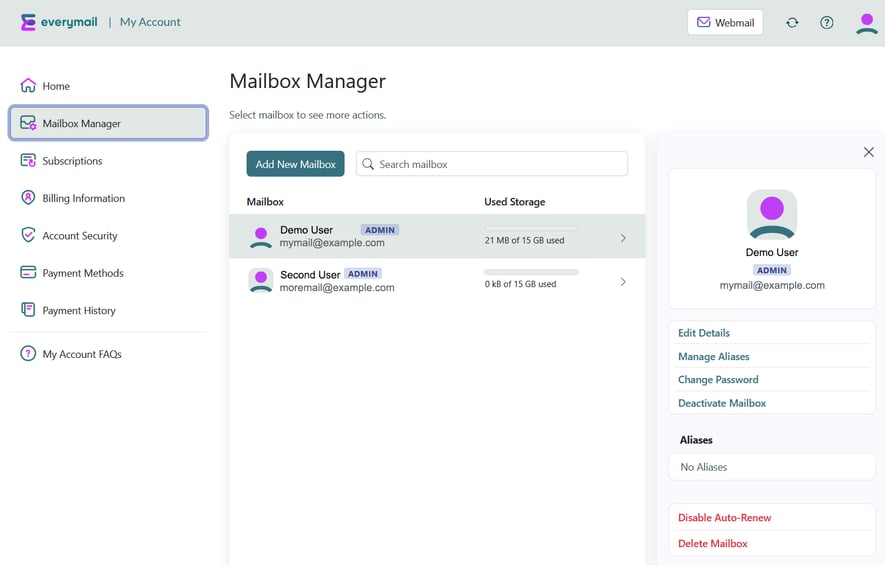
The mailbox list shows your mailboxes, their Used Storage, Admin status, and configured aliases. Select a mailbox to view its settings and available actions
.
Managing an Existing Mailbox
Select a mailbox from the list. The available options include:
Edit Details
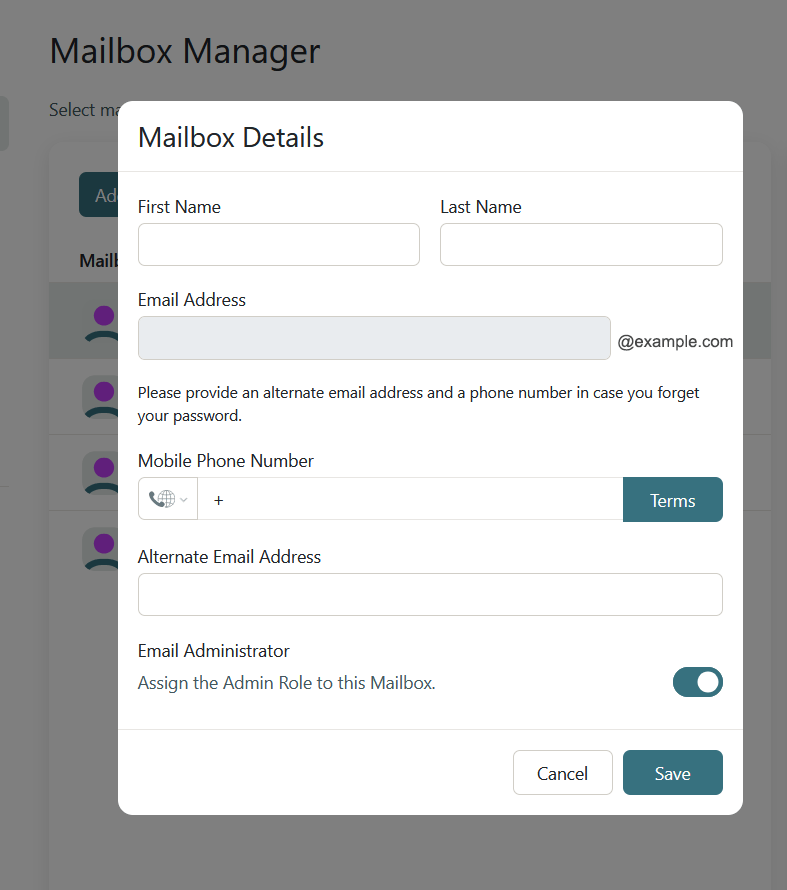
Select the mailbox you want to update and click Edit Details.
In the Mailbox Details window, you can update:
- First Name and Last Name
- Email Address
- Mobile Phone Number
- Alternate Email Address
- Admin Role
Click Save to apply your changes.
Note: Passwords cannot be changed here. Use Change Password instead.
Manage Aliases
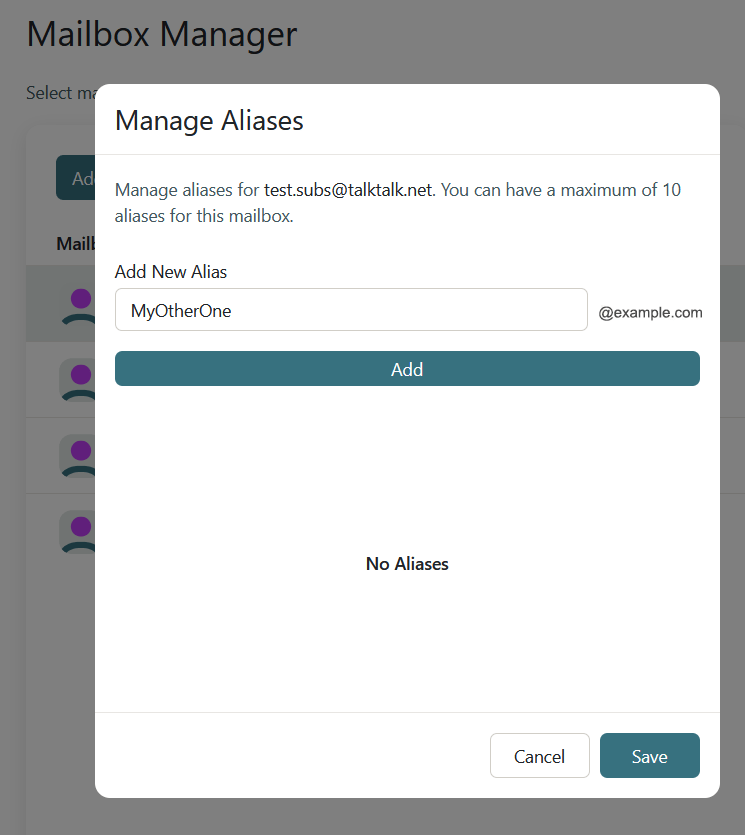
An email alias is an additional email address that receives messages in the same mailbox. This allows you to use multiple email addresses without needing separate inboxes.
To add an alias:
- Select the mailbox in Mailbox Manager.
- Click Manage Aliases.
- Enter the new address in Add new alias.
- Click Add. Repeat to add more aliases.
- Click Save.
To remove an alias:
- Open Manage Aliases for the selected mailbox.
- Click the trash can icon beside the alias you want to remove.
- Click Save.
Note: You cannot add an alias that matches an existing mailbox or alias. Changes do not take effect until you click Save.
Change Password
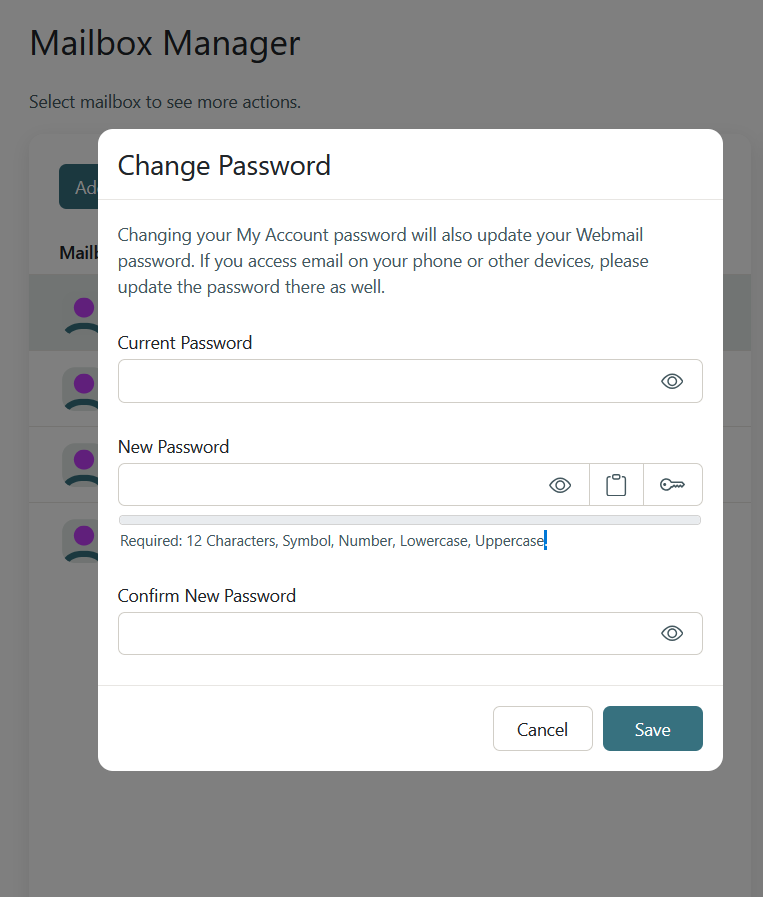
An administrator can change the password for a mailbox in Mailbox Manager.
- Select the mailbox you want to update.
- Click Change Password.
- Enter the new password and enter it again in Confirm New Password.
- Click Save.
The new password must have:
- At least 12 characters
- At least 1 uppercase letter
- At least 1 lowercase letter
- At least 1 number
- At least 1 special character
Note: The new password is not automatically sent to the mailbox user. The administrator must provide it to the user securely.
Deactivate/Reactivate a Mailbox
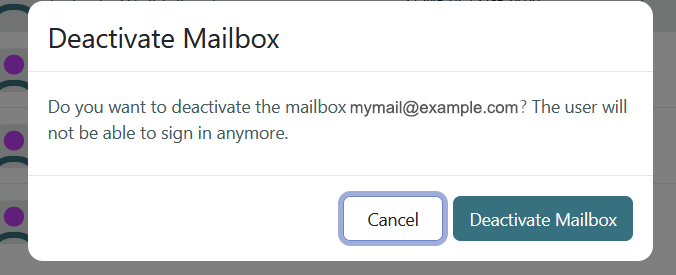
Deactivating a mailbox prevents the user from logging in, but the mailbox continues to receive email. An administrator can reactivate the mailbox at any time.
To deactivate a mailbox:
- Select the mailbox in Mailbox Manager.
- Click Deactivate Mailbox.
- Click Deactivate Mailbox again to confirm.
A red DEACTIVATED label will appear next to the mailbox in the list.
Note: You cannot deactivate the mailbox you are currently logged in with.
To reactivate a mailbox:
- Select the deactivated mailbox.
- Click Activate Mailbox.
- Click Activate Mailbox again to confirm.
The DEACTIVATED label will disappear, and the user will be able to log in again.
Disable Auto-Renew for a Mailbox
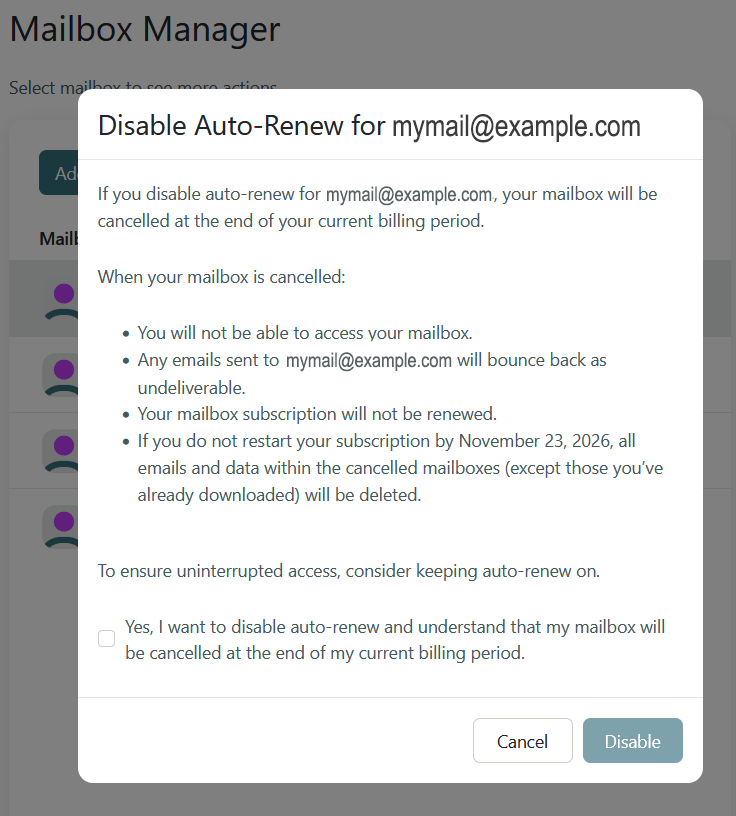
You can stop an individual mailbox from renewing without cancelling your entire Everymail subscription.
To disable Auto-Renew for a mailbox:
- Select the mailbox in Mailbox Manager.
- Click Disable Auto-Renew.
- Read the confirmation message and confirm the change.
The selected mailbox will be removed from your subscription at the next renewal. This does not cancel your entire subscription.
To cancel your entire subscription, see Managing Your Subscription in My Account.
Delete a Mailbox
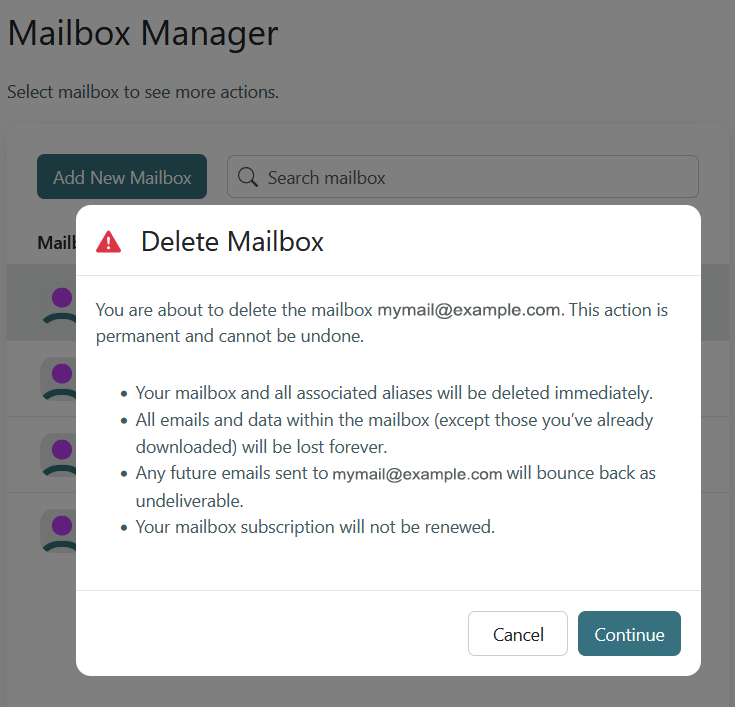
Deleting a mailbox permanently removes the mailbox and all of its email. This cannot be undone, and the mailbox and its contents cannot be recovered.
To delete a mailbox:
- Select the mailbox in Mailbox Manager.
- Click Delete Mailbox.
- Read the warning carefully.
- Enter the mailbox's full email address in the confirmation field.
- Click Delete to permanently delete the mailbox.
Adding a New Mailbox
You can create new email mailboxes in My Account > Mailbox Manager.
To add a mailbox:
- Click Add Mailbox or Add New Mailbox.
- Complete the required information, including the user's name, new email address, contact information, and initial password.
- Enable Assign the Admin Role to this mailbox if the new user should have administrative access to My Account.
- Click Save and follow the instructions to complete the process.
Note: Depending on your account configuration and the number of mailboxes you already have, you may need to complete the checkout process to purchase additional mailboxes.
Important: The initial password is not automatically sent to the new mailbox user. The administrator must provide the password to the user securely.
Admin Role
Only users with the Admin Role can sign in to My Account. Users without this role receive the error message “You are not allowed to sign in.”
An administrator can:
- Add, edit, deactivate, reactivate, and delete mailboxes
- Manage aliases and change passwords for other users
- Access subscription and billing settings
- Contact advanced support through the support widget
To assign the Admin Role:
- Select the mailbox in Mailbox Manager.
- Click Edit Details.
- Enable Assign the Admin Role to this mailbox.
- Click Save.
You can also remove the Admin Role through Edit Details.
Note: If your account has only one mailbox, the Admin Role is enabled by default.